How to use Turnabee
The first half is for organisers (the person who plans things): what Turnabee can do and where to find it. The second half is for members (the people who get notified): how to get plans into their calendar and how to reply.
Guide for organisers
1. Getting started
- Create a group: such as “Home” or “Mum and Dad's care”. A group is the people who get the same set of plans.
- Add your family: on the People page, add someone and send them their invite link or QR code by text or chat.
- They open the link: and pick the calendar they already use (iPhone Calendar, Google Calendar or Outlook). It's a one-time setup. After that, whatever you plan for them shows up in their calendar and alerts them on time.
Your family don't need an account, a password or an app, and it's free for them.
2. Adding something
Tap “Add something” on the board (on a phone, the “+” at the bottom right). Only a name and a date are required.
- Something to do / Just an event: things to do (bins, bills) have a tick; events (dentist, parents' evening) don't, and disappear once the date has passed.
- Time: optional (all day). With a start time you can add an end time.
- Repeat: “Just once”; “When it is done” (the next one counts from the day you tick it, e.g. a filter every 3 months); “On a fixed date” (the next one stays on schedule, whenever you tick). With a fixed date every week you can also pick weekdays, so “Piano every Mon, Wed and Fri” is one item.
- When to remind: at the time, 10 minutes, 1 hour or 1 day before – pick any. Only the people doing it get the alert.
- Where: the place appears in their calendar, with “📍 Open the map” to choose Google Maps or Apple Maps.
- Notes, attachments, stickers: notes show in their calendar; attachments (photos, PDFs) open from a link; a sticker goes in front of the name so it's easy to spot.
- Who it's for: any number of people, or everyone.
- Who sees it: “Everyone”, “Only the person doing it” or “Only some people”. Anyone who can't see it won't have it in their calendar.
- 🤫 Keep it secret from: for surprise parties and presents. The people you pick won't see it – or you can show them just “Busy” at that time. Secret plans don't go on the group calendar.
- Show it on the shared calendar: whether it appears on the group calendar.
- Time clash: if the same person already has something then, you'll see a yellow note. It's only a heads-up – you can still save. See “How time clashes work” below.
- 🔍 Find a free time: looks at plans already in Turnabee and suggests times over the next 7 days when everyone's free (8 AM–9 PM). Tap one to fill it in. Turnabee can't see what family members put in their own phone calendars.
How time clashes work: when two plans for the same person land on the same day and overlap, you'll see a yellow “Time clash”. It's only a heads-up – you can still save.
- Plans with a time: they clash only if the times overlap (no end time counts as 30 minutes).
- “Just an event” with no time (a school trip, a holiday away): counts as the whole day. Anything else with a time that day, or another “Just an event” with no time, is flagged.
- “Something to do” with no time (pay a bill, take the bins out): it's only a due date (“done by that day”), not time spent, so it never raises a clash – not even on a day with an all-day event. To include it, give it a time or switch it to “Just an event”.
- The same person: someone who's in “Who it's for” on both plans; a plan for “Everyone” counts for everyone. Your other groups are checked too: the same email or the same Turnabee account means the same person, and the same name is marked “may be the same person”.
- Repeating plans: every time over the next year is checked; if it clashes more than once, you'll see how many more times.
- Where you'll see it: adding, editing, dragging, copying, adding several at once, the AI review page (tap “Time clash” to open it), plans created from forwarded emails (in the email and on that plan on the board), and the page family members use to add plans.
To change something, tap it on the board.
3. Adding several at once, and reading a notice with AI
- Add several: “Add several” at the top of the board – one row per item, then a page to check everything before it's created.
- Read a notice with AI: take a photo of a school letter or paste a message, and the AI lists the dates and plans in it. You check each one, pick who it's for, then create them. If it says “every Monday and Wednesday”, those weekdays are ticked for you; if it says “bring a packed lunch”, you also get a “Tomorrow, bring: …” reminder at 8 PM the night before. Photos stay on your device; Turnabee doesn't keep them. How many you can do each month depends on your plan.
- ✨ AI assistant: the ✨ at the bottom right of every page. Type, tap 🎤 to say it, or tap 📷 to take a photo or pick one from your library. The AI shows you what it found first; tap “Review and add →” and check it before anything is added.
- 📧 Forward an email: forward school or class emails to your group's own address and the AI adds them to the calendar (see section 4).
- 🤫 Keep it secret from: works on “Add several” and on the AI review page too, just like when you add one thing at a time.
🤖 AI assistant connection: manage plans with ChatGPT or Claude
Connect your own ChatGPT or Claude to Turnabee and check, add and change plans just by asking – like “What's on this week?”, “Add Jamie's dentist on Friday at 3pm” or “The bins are done.” It works on every plan.
- Find the connection URL: on the “Account” page, under “🤖 AI assistant connection (ChatGPT, Claude)”, tap “Copy address”.
- Paste it into your assistant: the same card has the steps for ChatGPT and for Claude (add a custom connection and paste the URL).
- Sign in and press “Allow”: a Turnabee page opens saying what it can do and which site you'll go back to. Only press “Allow” if you started connecting yourself just now. If you don't want it to change plans, untick “Allow it to add and change plans”.
- It can't delete plans or see payment details. To remove a plan, do it on the website or in the app.
- Plans it adds or changes work just like yours, and your family is notified as usual.
- ChatGPT and Claude use your own account there; whether you can add custom connections depends on their plans. That's their own subscription, separate from Turnabee.
- To disconnect: at the bottom of the same card, under “Connected”, press “Disconnect”. It can't get in any more.
4. Forward emails to add plans
Notices from school, classes and activities turn into plans just by forwarding the email – no typing them in one by one.
- Find the address: in “Group settings”, scroll down to “📧 Forward emails to add plans” and tap “Copy address”. Each group has its own address (add-…@turnabee.com); whichever address you forward to, that's the group the plans go into. Save it as a contact on your phone (for example “Turnabee Home”) so it's easy to find when forwarding.
- Forward: open the email in Gmail, Outlook or the iPhone Mail app, tap “Forward”, put the address in “To” and send. No need to type anything; if you want to add a note (like “this is Grace's”), write it at the top – the AI reads it too.
- Wait for the notification: in about half a minute to a minute, your phone and your helpers' phones show “📧 N added from an email”, and you get a confirmation email.
- Check: tap the notification, or “Check, edit or delete” in the email. You can edit or delete each one; if the whole email was read wrong, tap “Delete all N from this email”.
- Who can forward: you, your helpers, family members whose email is on the People page, and family members who sign in with their own Turnabee account. Send from that email address – emails from anyone else are dropped, unread and unanswered.
- Who it's for: if the email names a family member (for example “Grace's field trip”), it goes to them; if it can't tell, it goes to “Everyone”. Plans for “Everyone” show on the group calendar; plans for one person don't (same as adding one at a time).
- What's read: the email text and the first photo (for example a picture of a paper notice). PDF attachments aren't read yet – if the details are in a PDF, copy the text into the email and forward it again. Anything without a date isn't added.
- Limits: each email uses 1 AI read (an email where nothing was found doesn't count). Up to 20 emails a day per address, and 5 a day per family member.
- If nothing was added: when no plans with a date were found, the AI reads have run out, or too many emails were sent today, the person who forwarded it gets an email explaining why.
- What came in: the same section in “Group settings” has “Recent emails”, showing the last 5 – who sent them and how many were added.
- If someone else got the address: tap “Change address” in the same section. The old address stops working right away. Remember to update the contact on your phone too.
- Privacy: we don't keep the email, photos or attachments – only who sent it, the subject and how many were added, deleted after 90 days.
Forward automatically: set it once, school emails come in on their own
Set a rule in Gmail, Outlook or iCloud and school emails are forwarded here automatically – no forwarding each one.
- Find your own address: in “Group settings” (in the app: “Me” → “Groups” → “Group settings” next to the group) → “📧 Forward emails to add plans”, scroll to “🔁 Forward automatically (Gmail, Outlook, iCloud)”. There's an auto-…@turnabee.com address – tap “Copy address”. This address is just for you: emails sent here are read whoever they're from, so keep it to yourself.
- Set a rule in your email: the idea is always “emails from the school → forward to this address”. The same section has these steps too.
- Gmail (on a computer, gmail.com): ⚙️ → “See all settings” → “Forwarding and POP/IMAP” → “Add a forwarding address” and paste the address. After confirming, use the filter icon in the search box to create a filter: “From” = the school's address → tick “Forward it to” and pick your Turnabee address.
- Outlook (in a browser, outlook.com): ⚙️ Settings → “Mail” → “Rules” → “Add new rule”. For the condition choose the sender's address and enter the school's address; for the action choose “Forward to” and enter your Turnabee address. The first time, Outlook asks you to sign in and verify your account – do that, then Save.
- iCloud (in a browser at icloud.com/mail, on your phone too): Settings → “Rules” → “Add a rule”. Choose “From” and enter the school's address; for the action choose “Forward to”, enter your Turnabee address and tap “Add”. The rule can take a few minutes to start working.
- Gmail's confirmation: Gmail first sends a confirmation to this address. Turnabee tells you right away and puts the confirmation link in “Group settings”. Only confirm if it's your own Gmail.
- You're told about every email: when plans are added you get a notification to check them (one on your phone and one email, showing the original sender), and the board, calendar and home-screen widgets update; when no dates were found, the AI reads ran out, or too many came in today, you're told too, so you can look at the original in your inbox.
- Only forward school emails: set the rule for the school's (or club's) address only. Forwarding everything uses AI reads on adverts too, and you'll hit the 20-a-day limit quickly.
- If someone else got the address: tap “Change your auto-forward address”. The old one stops working right away – update the rule in your email too.
5. The board
- Sections: overdue, today, tomorrow, this week, next week, later. Each one folds away, and this device remembers.
- Just one person: switch “Everyone” at the top to one family member.
- Ticking: tap the circle on the left when it's done. Events don't have one.
- ⓘ: category, how it repeats, place, notes, who added it – and you can send the item to someone.
- Bin: delete. You'll see which item it is first, then tap again to delete; it disappears from their calendar too.
- Select several: at the bottom, to delete many at once.
- Just added: “Added …” appears at the top, with buttons to send it to them by LINE, text and more. If you forget, send it later from ⓘ.
- Birthdays: within 3 weeks of a family birthday, “Plan a celebration” appears at the top (see the People page).
6. Replies from family, and family adding plans
- Done: on things they need to do, the notes in their calendar have “✓ Done? Tap here to tell them”. When they do, you get a notification and it's ticked on your board.
- Seen it: on events for them, there's “✓ Seen it? Tap here to let them know”. When they reply, your board shows “✓ Dad got it”.
- Family adding plans: on the People page, each person has “Add plans”. Give them that QR code or link and they can add plans and files themselves – no account needed. What they add goes straight into everyone's calendar, and you're notified. They can only change or delete what they added. This link isn't the same as the invite link.
- Let family use AI too: on the People page, open “More” for that person and tap “AI on”. When they open their “Add plans” link, the ✨ AI assistant is at the bottom right – they can paste a notice, take a photo or say it. It uses your AI allowance, up to 5 a day per person; tap “AI off” to stop.
- Family with their own account: when they open “Add plans”, they can choose “Just add a plan” or “Sign in with a Turnabee account” (free). Once signed in, they see the group's board in the app or on the web (only what they're allowed to see), use their own AI allowance, get notified when plans change, and can use home screen widgets. Plans for them show on the group calendar and the widget, and on the group calendar they can tap a day to add and drag plans they added; after adding or editing, they go straight back to their board. They can't change what others added or add people.
7. The group calendar
“Calendar” in the top menu is a web address that works well on a tablet at home, a digital photo frame, or for grandparents who rarely check their phone. It doesn't need a login, so it only shows items where you ticked “Show it on the shared calendar”. Switch between month, week and day, and tap an item for the details, map and attachments.
Holidays: under “Holidays on the calendar” in group settings, tick “Western holidays”, “Taiwan holidays” or “Japan holidays” (as many as you like). Days off are shown in red. Holidays only appear on the group calendar, not in your family's phone calendars.
When you're signed in as an organizer (owner or helper): you see everything in the group. To see just what the tablet shows, tick “Only what's on the shared calendar” at the top. You can also:
- Tap a day to add: tap a date (or an empty spot on the week or day timeline for that time). “+ Add on…” appears at the bottom – tap it and the date and time are filled in. After adding, you come back to the calendar.
- Drag to move: on a computer, hold a plan and drag it; on a phone, press and hold, then drag. In month view drag it to another day; in week or day view drag it to another time, or onto the “All day” row to make it all-day. When you let go, choose “Move” or “Copy” (copy adds the same plan on that day), and “Undo” appears afterwards. For a repeating plan, “Move the series” makes it repeat from the new day and “Copy” copies just that day; plans that repeat on set weekdays can only change time or be copied. If a day is busy or the new date is far away, press and hold the plan in the list below the calendar and pick the date and time. While you drag, a label above your finger shows the day and time you're dropping it on, and in week or day view a dashed box shows the time it will take up.
Time clashes: after you drag or copy a plan, any clash is shown below (your other groups are checked too). See “How time clashes work”.
8. The People page
Each person's row has a few buttons (the rest are under “More”):
- Invite: their invite link and QR code, for setting up their calendar.
- Add plans: the link that lets them add plans themselves (see section 6).
- AI on / AI off: lets them use the AI assistant on their “Add plans” page too (see section 6).
- Send mail / Stop mail: emails them what's coming up (add their email address first).
- Resync: if their calendar stops updating, start it again.
- New link: if a link went to the wrong person, make a new one – the old one stops working.
- Remove: takes them out of the group.
Tap their name to edit:
- Your name for them: the name you see (e.g. change “android 2” to “Nanny”). Only you see it.
- Email and colour.
- 🎂 Birthday: month and day only. Three weeks before, you get a reminder and “Plan a celebration” appears on your board – tap it and the event, date, 🎂 and “keep it secret from them” are filled in, with times when everyone's free. You can add your own birthday too; your helpers get the reminder.
9. Helpers: managing together
On your account page (the round initial at the top right), find “Helpers” and invite someone by email. They sign in with their own account and can plan things and add people in the groups you choose. They use your plan, so they don't pay anything.
Helpers can't delete groups, remove people, change your plan or invite other helpers.
10. Notifications
Turn on “Notifications on this device” on your account page and you'll be told about these – each can be switched off separately: a reminder is due, someone says a task is done or that they've seen an event, a family member adds or changes something, someone's calendar stops updating, tasks are overdue with nobody on them, a family birthday is coming up…
When plans change: whenever you, a helper or a family member adds, changes or removes something, every phone with the Turnabee app gets an alert like “10/25: something was added or changed — please check”. Tap it to go straight to that item. Nobody is alerted about a plan that's kept secret from them.
Alerts late or missing on Android: open your phone's Settings → Apps → Turnabee → Battery, choose “Unrestricted” (or “No restrictions”) and allow it to run in the background. On Xiaomi and some other phones, also turn on “Autostart”. Do the same for your calendar app (Google Calendar or the phone's own calendar).
11. The phone app
The Turnabee app does everything the website does, and you can put widgets on your home screen to see things without opening the app: what's on today, tomorrow and this week, the group calendar (switch between month and week), and an “AI assistant” widget that opens the chat straight away. Tap an item and it takes you straight to it on the board.
When plans are added, changed or removed, the widgets update within seconds (on iPhone, app 1.0.2 or later and iOS 26 or later).
In a browser, you can “Add to Home Screen” so Turnabee works like an app.
12. Plans and limits
- How many people and groups you can have, how many notices the AI can read each month, and how much room there is for attachments: see “Your plan” on your account page.
- Your family are always free and don't need accounts.
- Helpers use your plan. Plans and files your family add count towards yours (the organiser's) too.
13. Everything else
- Take your data with you: in group settings (on the web or in the app), download what's still to come as a calendar file (.ics) or a spreadsheet (.csv).
- Tell a friend: “Enjoying Turnabee?” on your account page lets you recommend Turnabee by LINE, text message or a copied link. In the app you can also “Rate Turnabee”.
- What's new: “What's new” at the bottom of every page shows recent changes.
- Delete your account: at the bottom of your account page.
Guide for members
For the people who get notified. This part also has its own page (turnabee.com/help) you can send them.
You will get a link
By message, email, or a QR code to scan. Open it, pick the calendar you already use, and that is the whole setup.
That link is yours specifically — do not forward it. Whoever has it is treated as you.
Apple Calendar (iPhone, iPad, Mac)
One step matters a lot. Skip it and the events will appear, but they will never alert you — and you will not notice, because everything looks fine.
- Apple's subscribe screen appears. Do not tap the tick in the corner yet.
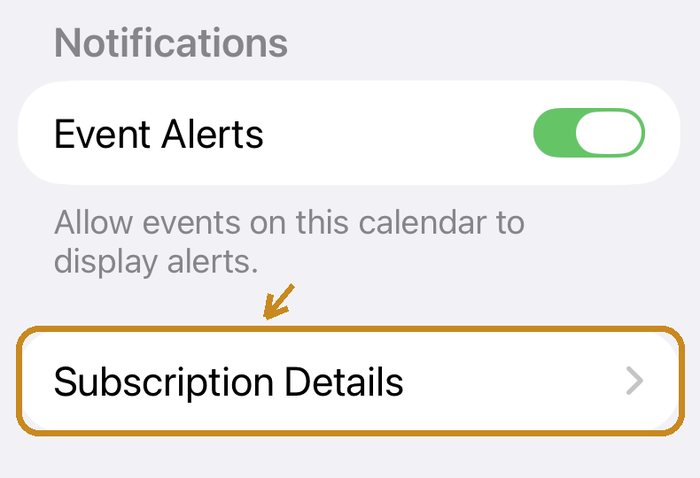
- Scroll to the bottom and tap Subscription Details.
- Turn Remove Alerts off, go back, and then tap the tick.
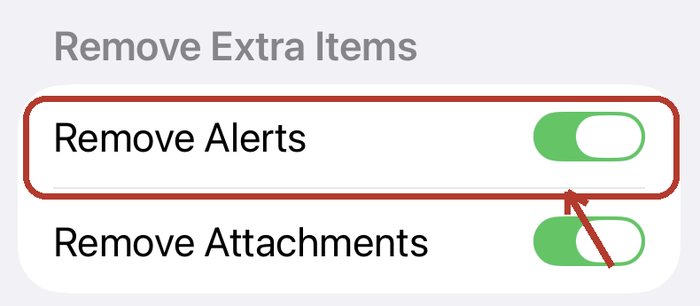
Remove Alerts is on by default, and it strips out every reminder we set. Turning it off is the single most important line on this page.
Already added it, but no reminders?
That step is almost always why. The simplest fix: delete that calendar from your Calendar app and open the original link again, this time turning Remove Alerts off. Your own calendars are untouched — you are only deleting the subscribed one.
Google Calendar
Tap Connect Google Calendar and approve once with your Google account.
On Google's consent screen there is a small checkbox next to the permission, and it is not ticked by default. Tick it — without it we cannot write to your calendar, and nothing on screen tells you what is missing.
Connect once. After that it updates by itself.
Outlook Calendar
If you use Outlook (Outlook.com, Hotmail, or a work or school Microsoft account): open your link, tap Connect Outlook Calendar, sign in with your Microsoft account and tap Accept. Turnabee creates a calendar named after the group in your Outlook, and a test alert appears about two minutes later. After that, changes show up in your Outlook within seconds – on the web, the desktop app and the phone app alike, as long as it is the same Microsoft account.
With a work or school account, your IT team may need to allow Turnabee first; if it will not connect, try a personal Microsoft account. Outlook allows only one reminder per event, so the one closest to the start time is used.
Any other calendar app
Open your link on a computer or an Android phone and you will find a URL ending in
.ics near the bottom. Copy it into your calendar app's
"subscribe to calendar" or "add calendar from URL".
For Outlook, use Connect Outlook Calendar above rather than this URL: Outlook only checks subscribed calendars every few hours, so changes take a long time to show up.
Making sure reminders really go off
A few minutes after you subscribe, a test reminder called “Turnabee is working ✓” appears in your calendar. When it goes off, tap the link in it to confirm and it disappears – nothing else to do.
If it never goes off, for the next few days “⚠ Turnabee reminders not confirmed” shows at the top of your calendar. Usually it's the Remove Alerts setting above. Open that item and follow it – it takes about 20 seconds.
Saying “done” or “got it”
Open the item in your calendar. The notes have a link:
- Something for you to do: “✓ Done? Tap here to tell them”. It opens a page – tap “I did it” and they'll know.
- An event for you (a parents' evening, a dinner): “✓ Seen it? Tap here to let them know” – tap “Got it”.
Items that aren't for you don't have this link.
Opening attachments and maps
- Attachments: at the end of the notes there's a file name with a link underneath. Tap it to open the photo or PDF.
- Places: if there's a place, tap “📍 Open the map” and choose Google Maps or Apple Maps.
Adding plans yourself
If you've been sent an “Add plans” link (or QR code), open it to add something yourself – still no account and no app:
- Fill in what it is and which day. Time, place and notes are optional, and you can attach photos or files.
- Under “Who it's for”, choose “Just me” or “Everyone”. It shows up in everyone's calendar within a few minutes.
- You can check everyone's calendar first, or tap “Find a free time” to pick a time when everyone's free.
- If the time clashes with someone's plan, you'll see a yellow “Time clash” (no time = all day). It's only a heads-up – you can still add it.
- You can only change or delete what you added.
- 📧 If they've put your email on their People page, you can also forward school or class emails to the group's address (ask them for it) and the AI adds them to the calendar. Send from that same email address, or it won't be read.
- If they've turned AI on for you, the ✨ “AI assistant” is at the bottom right: paste a notice, take a photo or say it, and the AI sorts it out – nothing is added until you check it.
When you open it, you can choose “Just add a plan” or “Sign in with a Turnabee account”. Just adding is all you need; sign in (it's free) if you'd like to see the whole group's board in the app or on the web and be alerted when plans change.
Once you're signed in, you can also: see plans for you on the group calendar and your phone's home screen widget; tap a day on the group calendar to add a plan on that day; press and hold (or click and hold on a computer) a plan you added and drag it to another day or time, then choose “Move” or “Copy”. After adding or editing, you go straight back to your board, and clashes with your own groups are flagged too.
This isn't the same link as your invite. Add it to your home screen so it's one tap next time.
Why is it sometimes not up to date, or late to alert?
A subscribed calendar is fetched by your calendar app on its own schedule — we do not push it. How often is up to that app, usually every few hours, and we cannot change it.
So a change made just now may take a while to reach you. (Google Calendar is faster, because there we write to your calendar directly.)
Alerts late or missing on Android: phones save battery by holding back calendar alerts. Open Settings → Apps → your calendar app (Google Calendar or the phone's own calendar) → Battery, choose “Unrestricted” (or “No restrictions”) and allow it to run in the background. On Xiaomi and some other phones, also turn on “Autostart”.
Stopping it
You can stop at any time, without telling anyone or asking permission:
- Subscribed calendar: delete that calendar from your calendar app.
- Connected with Google: open your original link and tap Disconnect Google Calendar. It works on your phone, and the Turnabee calendar is removed from your Google Calendar for you. (The Google Calendar phone app cannot remove this calendar; to remove it yourself you need Google Calendar on a computer. If you remove it that way, Google takes a while to let the person who set this up know, usually under an hour.)
- Emails: every email has an unsubscribe link at the bottom.
Once you stop, the other person cannot switch it back on for you. They can only send you the link again.
Adding Turnabee to your home screen
If you also want to look at the board itself (not required), you can add it to your home screen and use it like an app. How →
Still have a question?
Or email hello@turnabee.com.
Questions or ideas? Contact us →